
 Logos Staff

Version 55 delivers improvements that bring to you what you’re looking for. Keep reading to discover how.
Watch the update
Prefer a video walkthrough? Product manager and longtime Logos user Mark Barnes will share everything you need to know about this update in a live session. There’s even time for a Q&A at the end, so stick around with your burning questions.
Sign up for the video walkthrough on November 19 at 10 a.m. (PST), or catch the replay.
Highlights at a glance
- Listening that keeps up with you: A mini player stays on screen as you move around the mobile app.
- Research mode, ready when you are: The toggle for research mode sits right by your question in Study Assistant and stays on until you change it.
- A guided tour for anyone new to Logos: A short walkthrough shows new mobile users where to start.
- Seamless exploration: Open the Store in a separate panel so you can browse recommendations without closing your current workspace.
1. Keep listening while you move around the app
Lots of us listen to Scripture and other books on commutes, while making dinner, or on a walk. So we need an audio player that keeps us listening and doesn’t get in the way.
Now a mini player stays tucked just above the bottom menu, so you can keep listening while you read, search, or check your reading plan. Tap it to open the full player, where the controls change to fit what you’re listening to:
- Audio Bibles: skip by verse or by chapter
- Audiobooks and other audio: jump back or forward 30 seconds, or skip chapters
- Read aloud (text-to-speech): skip by sentence or by chapter
We also smoothed out how the player behaves when you rotate your phone or come back to the app mid-listen.
Open an audio Bible in the mobile app and give it a try.


2. Stay in research mode for your biggest questions
Research mode in Study Assistant is now in preview, available to everyone. In case you missed it, it’s designed for digging into deeper questions. It acts like your personal research assistant, looking for the relevant resources regarding whatever question you may ask and then reading them before answering. And, of course, it cites each source.

Now its preview is easier to find. The switch between study mode and research mode sits right by the box where you type your question. Once you switch to research mode, you’ll stay there until you toggle it off.
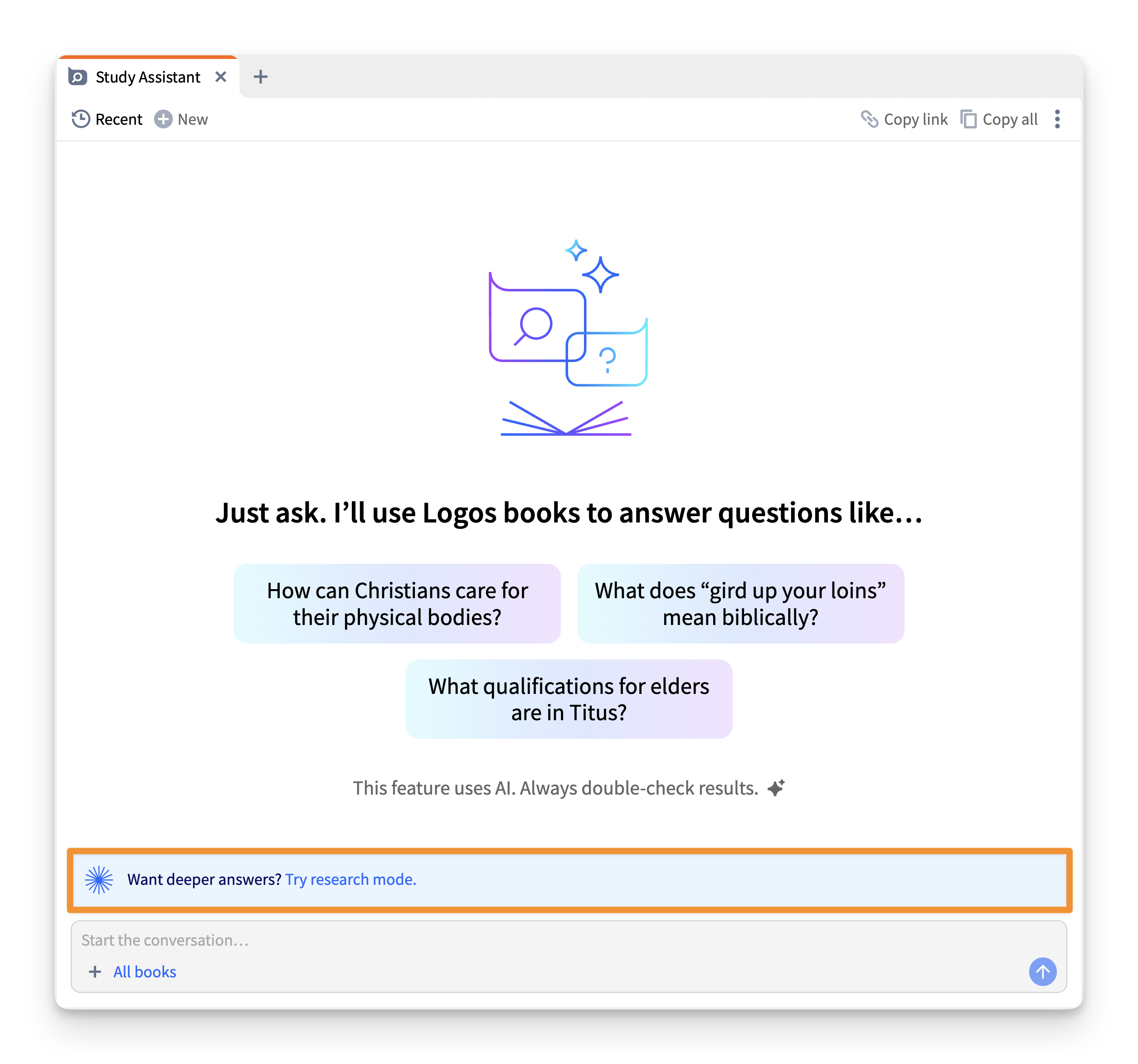
Once research mode launches early next year, it will be a Max exclusive. Even if you don’t consider yourself a “researcher,” it’s worth a try to see how your answers from research mode go further than those in Study Assistant’s normal mode. As one user commented, “This addresses my biggest concern with Logos—how to make the most of the books in my library.”
Come see what you think and help us make it better!

Those not subscribed can try research mode with the same free monthly uses as Study Assistant.
3. Get your bearings in the mobile app
Opening Logos for the first time can feel like walking into a huge library without a map. There’s so much here to help you understand the Bible, but it’s not always clear where to start.
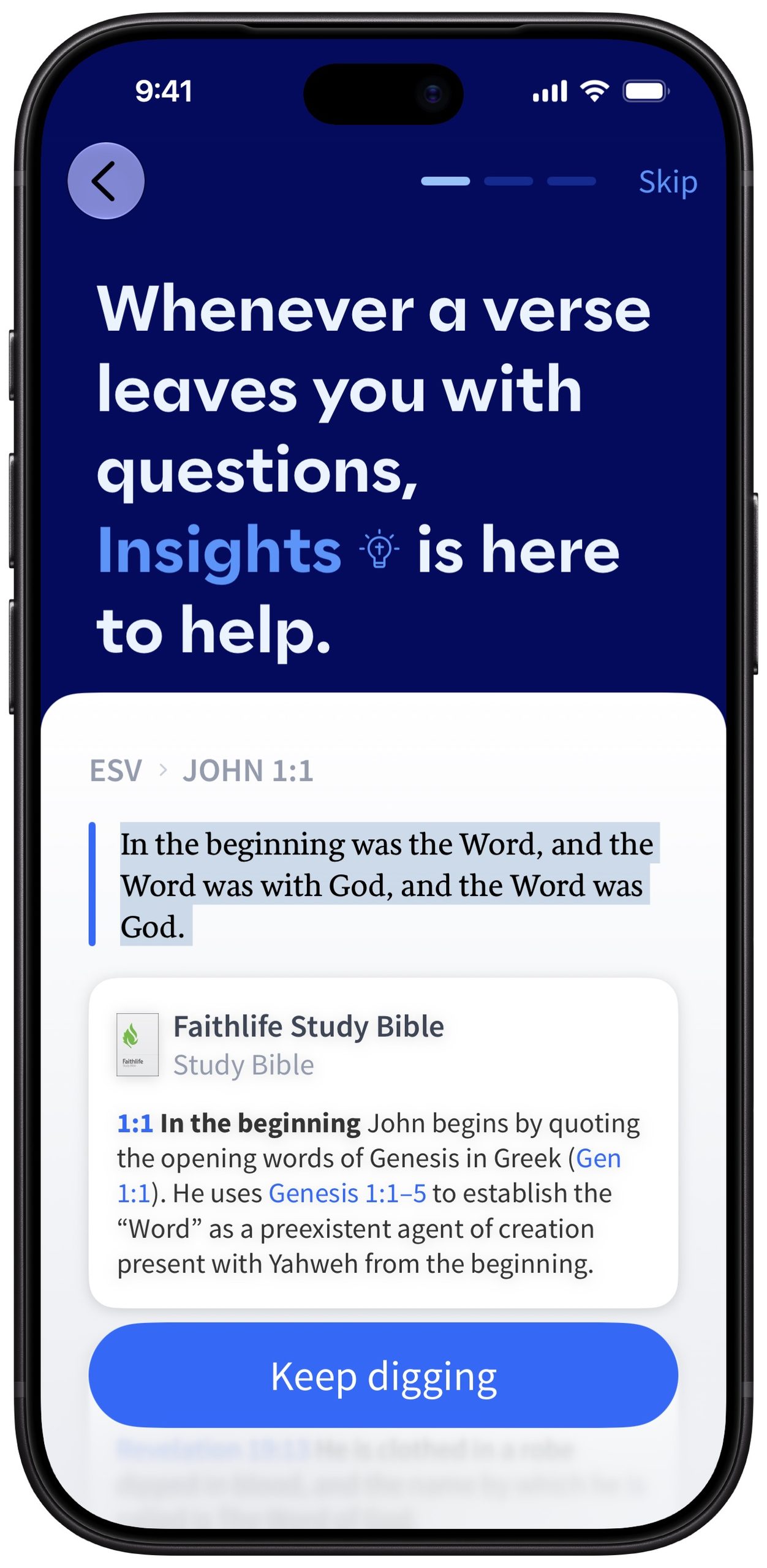
Now when you install the app or open it for the first time after updating, a short tour shows you around. You will need to sign in so your progress syncs across all your devices, and then pick your preferred Bible (if you haven’t yet). Then you can choose what you’d like help with:
- Read the Bible regularly: Set up a reading plan that fits your schedule.
- Understand the Bible: Learn how to use Logos to study. For instance, select a verse or word to discover Insights (study notes, cross-references, and definitions right next to your Bible) or ask Study Assistant your questions.
You can skip the tour at any point. Want to see it again later? Go to More > Help & Support > Show Tutorial.
4. Find your next book without leaving your study
You’re deep in study of a passage. You realize the commentary you need isn’t in your library. Finding it shouldn’t mean losing your place.
The Store now has its own button, with a new icon, in the main toolbar on desktop and web. On desktop, it opens in its own panel, so you can browse right next to your study.
You’ll also find:
- A featured book at the top of the Store, picked for you or from current deals
- A separate Library tab for your print books, so they’re not mixed in with the Store
- Clearer prices and discounts, including for currencies other than USD
Looking for the Help Center? It has moved to the bottom of the window.


More updates
Want to see all the under-the-hood updates and bug fixes? Take a look at the technical release notes.
We want to hear from you!
Have ideas for how we can build a product you’ll love? Share your suggestion and you might see it in a future update!
Connect with us
Join 500K+ others and connect with us to be first to know about the latest releases and promotions from Logos:
We’d love to host you for free live training and show you how you can get the most out of Logos.
Subscribe to stay in the know about future updates.


