
 Logos Staff
Don’t just turn to Logos when preparing a lesson or chasing a question. Version 52 brings a huge redesign to Reading Plans, helping you stay consistent in your daily reading and study.
We’re also bringing you another upgrade to Study Assistant, making it easier for you to ask targeted questions about the very thing you’re studying.
Let’s get into it!
Watch the update
Prefer a video walkthrough? Product manager and longtime Logos user Mark Barnes will share everything you need to know about this update in a live session. There’s even time for a Q&A at the end, so stick around with your burning questions.
Sign up for the video walkthrough on July 16 or catch the replay.
Highlights at a glance
- A whole new Reading Plans experience: New features include one home for all your plans, smarter notifications, and a more forgiving way to stay consistent.
- Sharing a reading plan just got simpler: Send anyone a link in seconds.
- Study Assistant gets context-aware: Ask focused questions about exactly what you have open, no copy-pasting required.
1. A whole new Reading Plans experience
Reading Plans have always been one of the most-used features in Logos. This release delivers the biggest overhaul they’ve ever gotten. It’s all aimed at one thing: making it easier for you to show up every day.
One place to see all your plans
Instead of hunting through different corners of the app, everything is now in one place on desktop. The new Reading Plan Manager gives you a single, organized hub for every plan you’re following: The Yours tab that sorts these plans by where they stand (Today, Anytime, Later, Archived).

Additionally, use the “Explore Plans” tab to browse and join new plans.
Open the app to access the Reading Plans Manager from the tools menu or open it from the dashboard (on desktop).

Your plans, front and center
The new Reading Plans dashboard card puts your active reading right on the Logos home screen. When you open the app, you can see where you left off, check your progress, and jump straight into today’s reading without digging through any menus.


A refreshed panel view
We gave the detailed view of Reading Plans a fresh new look. You’ll now see your overall progress at a glance, checkboxes to mark sessions complete, and a Read now button to quickly jump to your next reading. You can also change your Bible version, update the plan title, or adjust your reading dates right from this view.1


Mobile notifications to stay on track
You can now set reminders on your phone for your reading plans. Notifications appear only on the days you’ve planned to read, at the time you choose. If you fall behind, Logos routes you back to where you left off.
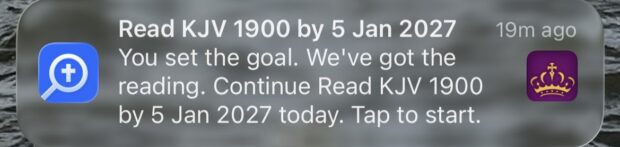
You’ll also see a reading plan reminder button in the book’s toolbar, so your active plans are never more than a tap away.


See more about what you can do with Reading Plans.
Grace for when life gets busy
Miss a few days? Sometimes it’s best to keep pressing forward rather than to try and make up for every day missed.
You’ll now see a Skip to latest option that will take you straight to today’s reading. Completing today’s session marks the skipped ones, and they don’t count against your progress.


2. Sharing a reading plan just got simpler
Want to read through a book with a friend or pass along a plan you’ve been following? The updated share dialog makes it as easy as copying a link.
Open the Share dialogue, then click Copy link on any reading plan and you’ll get a direct web link you can send by text, email, or however you usually stay in touch. No complicated setup—just a link.


3. Ask Study Assistant about exactly what you’re reading
Study Assistant enables you to ask questions of your library—and even of the wider Logos catalog—using everyday language to get answers from trusted sources.
Until now, if you wanted to ask Study Assistant a question about a specific passage or resource you had open, you had to reference or paste its text into the chat manually. Not anymore.
A new plus (+) button now lives right next to the collection picker in Study Assistant. Tap it, and you’ll see a list of every resource you currently have open in Logos. Select any resource, and its text will load directly into the chat. Study Assistant then answers using that passage as its anchor, so you get a focused response about exactly what you’re reading.
Study Assistant is not merely a separate tool but an integrated part of your study.
Learn more about what you can do with Study Assistant and try it today.


Those not subscribed will get a limited number of Study Assistant uses per month.
More updates
Want to see all the under-the-hood updates and bug fixes? Take a look at the technical release notes. Reach out to our support team if you need help, or join the conversation on our Facebook page.
We want to hear from you!
Have ideas for how we can build a product you’ll love? Share your suggestion and you might see it in a future update!
Connect with us
Join 500K+ others and connect with us to be first to know about the latest releases and promotions from Logos:
We’d love to host you for free live training and show you how you can get the most out of Logos.
Subscribe to stay in the know about future updates.


